You downloaded the Minecraft APK, tapped Install, and Android stopped with "App not installed" or "App not installed as package conflicts with an existing package". On some phones there is no message at all. This guide explains why that happens and how to fix it.
What you might see
- "App not installed" right after you tap Install.
- "Package conflicts with an existing package".
- On some Xiaomi phones (HyperOS), the installer asks "Do you want to update this app?". When you tap Update, it closes a few seconds later without any message. Nothing was installed, and you still have your old Minecraft.
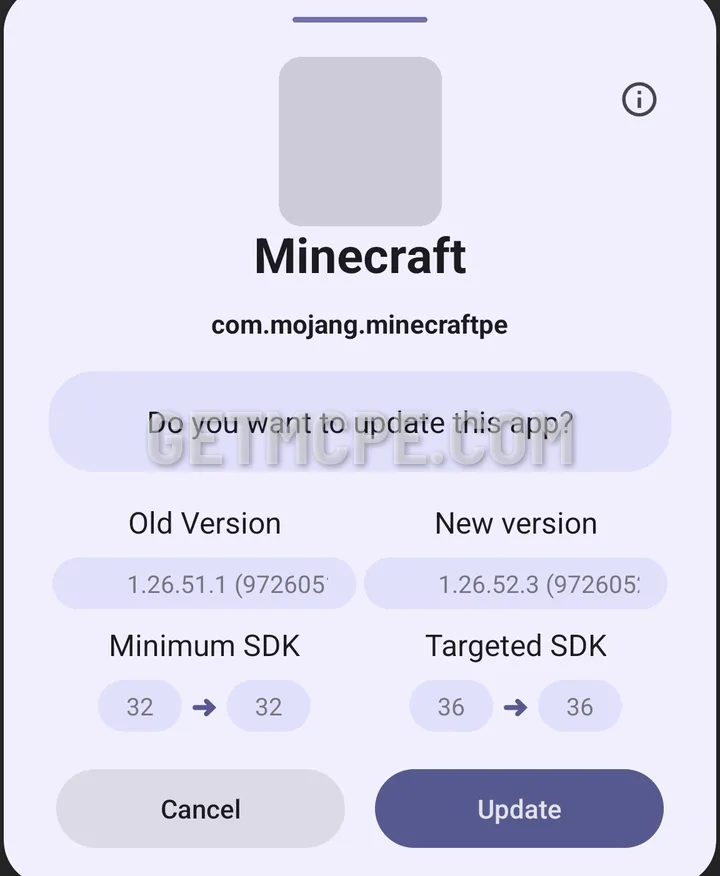 Installing over a Minecraft that came from somewhere else: the installer asks to update, then fails
The last case is easy to miss. If Minecraft opens and none of the new features are there, such as the full capes, the install did not go through.
Why it happens
Every Android app is signed by whoever published it. Android lets a file update an installed app only if both are signed by the same publisher.
The Minecraft you got from Google Play is signed by Mojang. Any Minecraft APK from another website is signed by someone else, so Android will not let it replace the Play version. The same applies if your current Minecraft came from a different website.
This is the same for every Minecraft APK site. There is no setting that switches it off on a normal phone.
Fix 1: install the Clone (keeps your current Minecraft)
Every version on GetMCPE has two files: Install over and Clone. The Clone is a separate app. It installs next to the Minecraft you already have and does not touch it or its worlds.
- Go back to the version page, for example the Minecraft APK page.
- Download the Clone file instead of the Install over file.
- Install it. Both apps now sit side by side on your home screen.
This is the right choice if you have worlds you want to keep.
Fix 2: uninstall your current Minecraft first
- Uninstall Minecraft from your phone.
- Open the Install over file again and tap Install.
Warning: uninstalling Minecraft deletes the worlds saved inside the app. If you have worlds you care about, use the Clone (Fix 1) instead.
Other reasons for "App not installed"
- Not enough free space. The file is about 1.1 GB, and Android needs extra room while it installs. Keep at least 3 GB free.
- The download is incomplete. A partly downloaded file usually gives a different error, "There was a problem parsing the package". See how to fix "problem parsing the package".
- Installs from your browser are not allowed. Android asks you to allow Install unknown apps for the browser or file manager you are installing from. Allow it, then go back and tap Install again.
Before your next install, have a look at what to check before installing Minecraft PE APK.