A 4D skin is a skin with its own 3D model: cat ears, horns, wings or a tail that stick out of the normal body shape. In the regular Minecraft app, those extra parts are dropped from skin packs you import yourself, so the skin looks flat. The Minecraft APK on GetMCPE keeps them, so imported 4D skins show up the way the creator made them.
This guide covers how to add a 4D skin, the difference between 4D and 5D skins, and how to fix the "Disconnected from host" error with the codeword Bat that a 5D skin causes.
How to add a 4D skin
- Download the skin pack. It is usually a
.mcpack file.
- Open the file from your browser's downloads or your file manager, and choose Minecraft when Android asks which app to use. Minecraft opens and imports the pack.
- Close Minecraft completely, then open it again. Do this before you equip a skin you have just imported.
- Go to Dressing Room, then Classic Skins. Your pack is listed under Owned Skins.
- Tap the skin, then tap Equip.
If the skin shows its ears, wings or other extra parts in the preview, it will look the same in your world.
4D skins and 5D skins
Some skin packs add an animation on top of the 3D model: wings that flap, a tail that swings. People call these 5D skins. They look great in the Dressing Room preview, but Minecraft cannot load them in a world.
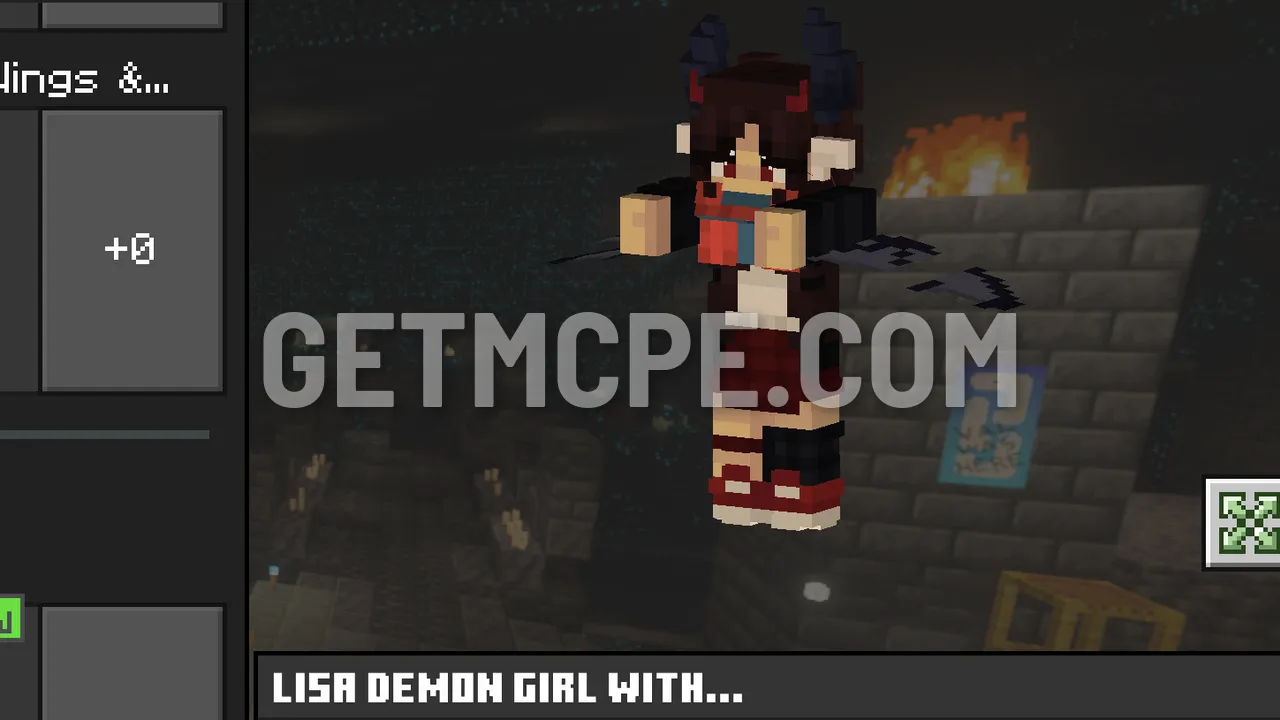 A 5D skin (a 4D model with an animation) in the Dressing Room: the wings move
The error: "Disconnected from host" (Bat)
With a 5D skin equipped, opening any world fails, even a single-player world on your own phone. You get this screen:
- Disconnected from host.
- Server not found.
- Search help.Minecraft.net for "Bat" for more information.
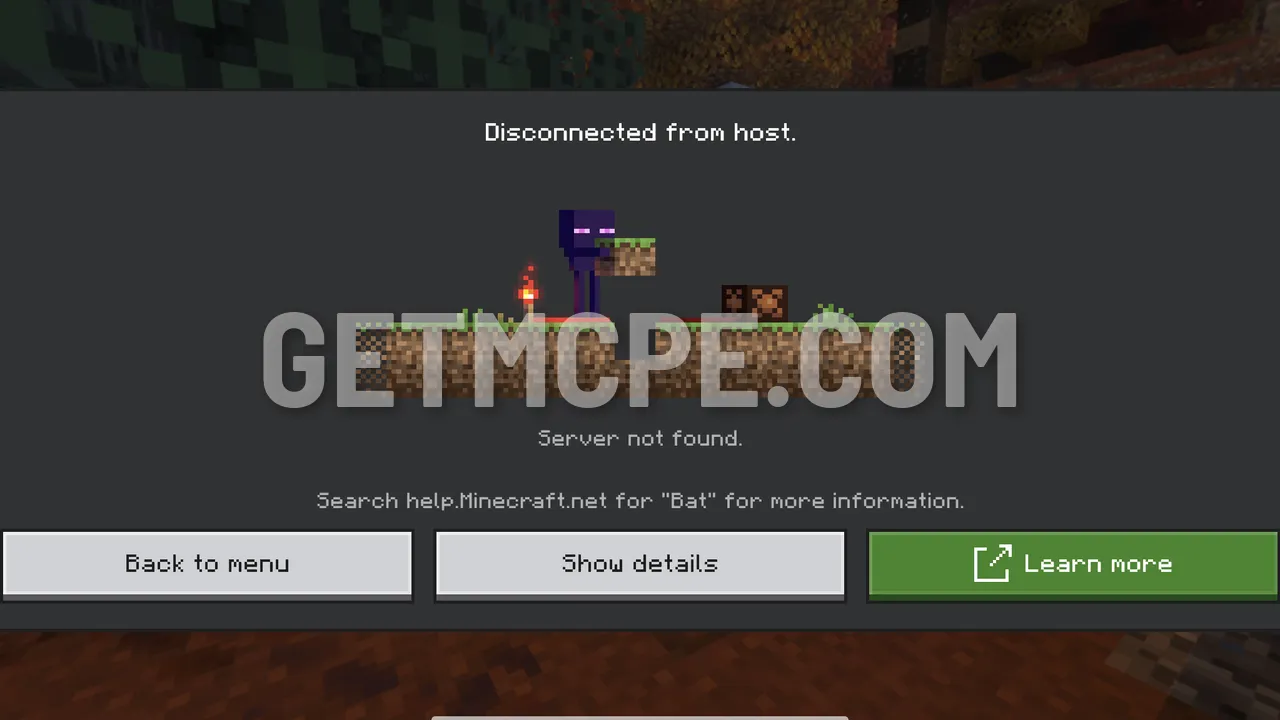 Joining any world with a 5D skin equipped: Disconnected from host, codeword Bat
If you tap Show details, the codeword is Bat and the error line reads InitialConnection-41.
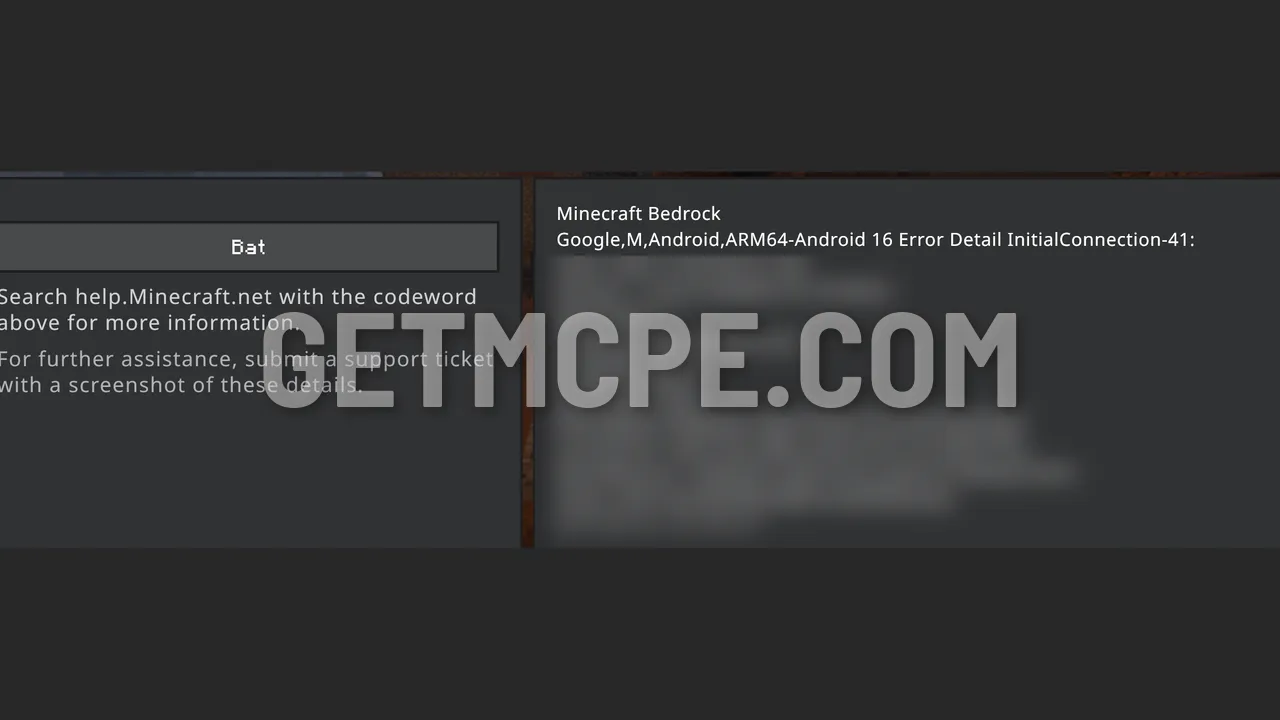 Show details: codeword Bat, error InitialConnection-41
Your world is not damaged. The skin you are wearing is what stops the world from loading.
How to fix it
- Tap Back to menu.
- Open the Dressing Room and switch to another skin or character. Any skin without an animation works, including the default ones.
- Open your world again. It loads normally.
Switching skins is what fixes it: the world loads as soon as a skin without an animation is equipped.
Why a 5D skin looks broken in GetMCPE
In the Minecraft APK from GetMCPE, a 5D skin shows as a broken model in the Dressing Room, with the body parts out of place. This is on purpose. It tells you right away that the skin will not work in a world, before you equip it and get disconnected.
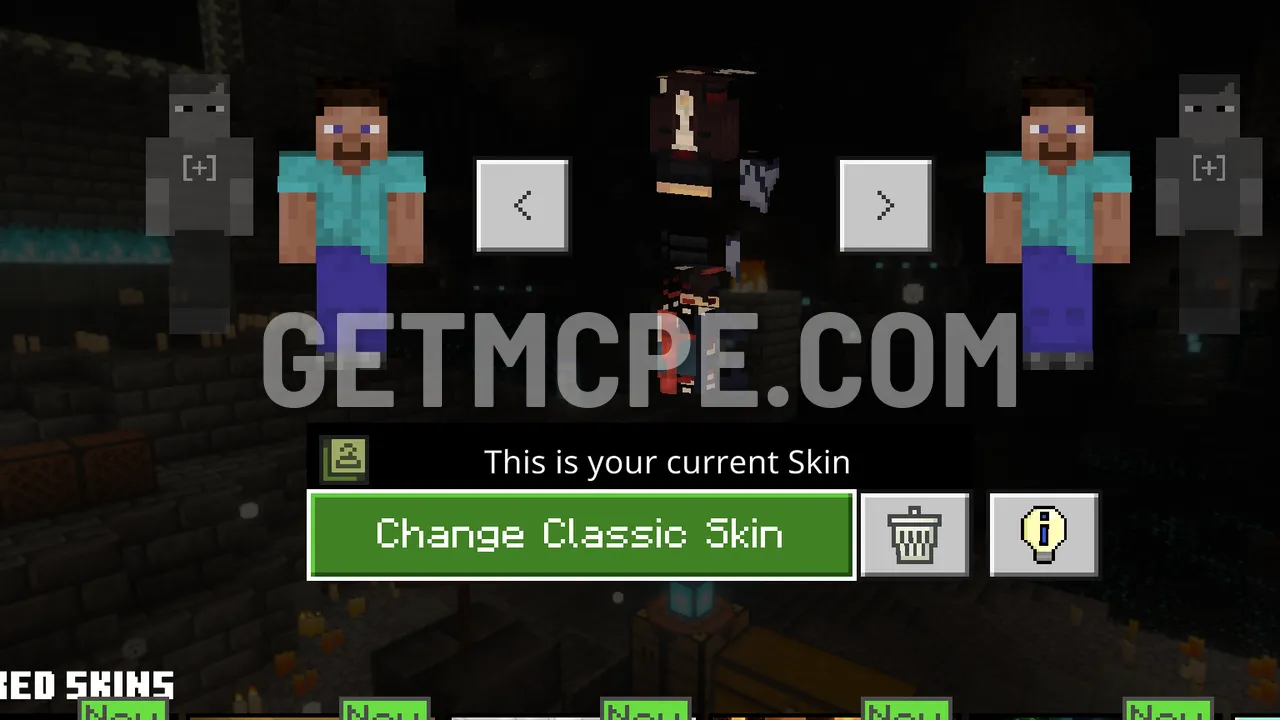 In GetMCPE builds a 5D skin shows as a broken model, so you can see at once it will not work
If the same skin is also offered without the animation, use that version instead. It works as a normal 4D skin.
Playing online with a custom skin
When you join an online server or a Realm, Minecraft may tell you that your custom skin is not allowed in cross-platform multiplayer. You can continue anyway, or pick a different skin for that session.
Get the Minecraft APK with 4D skin support on the Minecraft APK page.